Here's my take: if you calibrate and profile your monitor and then walk away, you're not done. You've done the work, but you haven't checked it. Most of the people I talk to already know how to calibrate and profile a display. They hang the instrument on the screen, pick their white point and luminance, let the software run through its patches, and save the profile. That's a good habit. What a lot of people don't realize is that there's one more step sitting right there in the software, and it's the step that actually tells you whether what you see on screen is accurate. That step is checking conformance. Conformance is checking your accuracy in a non-subjective way against a known reference. You'll hear that reference called a lot of different things: a standard, a specification, a target. For our purposes, they're all essentially the same idea. It's the thing you're trying to hit, written down in numbers. The key word is non-subjective. "It looks good to me" is not conformance. Your eyes adapt, your room lighting changes, and everybody's sense of "good" is a little different. Conformance takes opinion out of it. You measure, you compare to the target, and you get a number that tells you how close you are. On a monitor, that means displaying a set of known color values, measuring what the screen actually produces, and comparing the two. The gap between them is expressed as a color difference, usually Delta E (ΔE). Small numbers mean your screen is showing you what it's supposed to. Big numbers mean it isn't. It helps to separate the three steps, because people tend to lump them together. Steps one and two set things up. Step three tells you whether it worked. Skipping it is like setting up a press to a target and never pulling a sheet to measure it. I'm going to use X-Rite's i1Profiler as the example, because it's arguably the most widely used monitor calibration software out there. Other packages have similar tools, and the idea is the same. Once you've finished calibrating and profiling to your target settings, look for the small Display QA link. It's easy to miss, and that's exactly why so many people never click it. Click it. This is where conformance happens. X-Rite describes the Display QA reference as a set of target color values used to confirm both the accuracy and the repeatability of your display. In other words, it's your reference, your standard, your target. The first thing i1Profiler asks you to do is choose a patch set, and that choice matters more than people think. For the print and proofing option, you pick the industry-standard print specification that matches your workflow. This is the one I'd point most of our readers in printing and packaging toward, because it checks the display against the same kind of reference your press and proofs are held to. After i1Profiler measures the patches, you get a QA report with a pass or fail. That pass or fail comes from two numbers compared against tolerances you set: the average ΔE across all patches, and the maximum ΔE, which is your single worst patch. If either one is over tolerance, the display fails. Don't stop at the pass/fail, though. Look at the whole report. A few things I'd keep in mind: If it fails, don't panic. Check that the display warmed up before you measured, that the instrument was sitting flat on the screen, and that your target settings are realistic for that monitor. Then recalibrate, re-profile, and run QA again. Conformance isn't a one-time thing. Displays drift as they age, and the only way to know how much is to keep measuring against the same reference. Run Display QA right after every calibration, and use the same patch set and tolerances each time so your results are comparable from one month to the next. Save the reports. Over time, they tell you how stable your display really is. So here's my ask: next time you calibrate and profile, don't close i1Profiler when the profile saves. Click Display QA, pick the patch set that matches how you actually use that screen, and see how close you are to the target. That's the difference between thinking your monitor is accurate and knowing it. If you want to know whether your displays are accurate enough for soft proofing, Alder Color Solutions can help you set up calibration, profiling, and Display QA, and interpret the results. Director of Technical Services, Alder Color Solutions Dan has spent more than three decades helping printers, converters, publishers, packaging companies and photographers get control of their color, across offset, flexo, wide-format, digital and packaging production. He founded the color consultancy ColorGeek Inc. in 1999 and joined Alder in 2018. A certified G7 Expert since the inaugural 2006 class, he has spent nearly twenty years implementing G7 and international print standards in real production environments, and was one of the few certified instructors for the SGIA Digital Color Professional program. He's also a professional photographer, which keeps him fluent in both the artistic and the technical sides of imaging.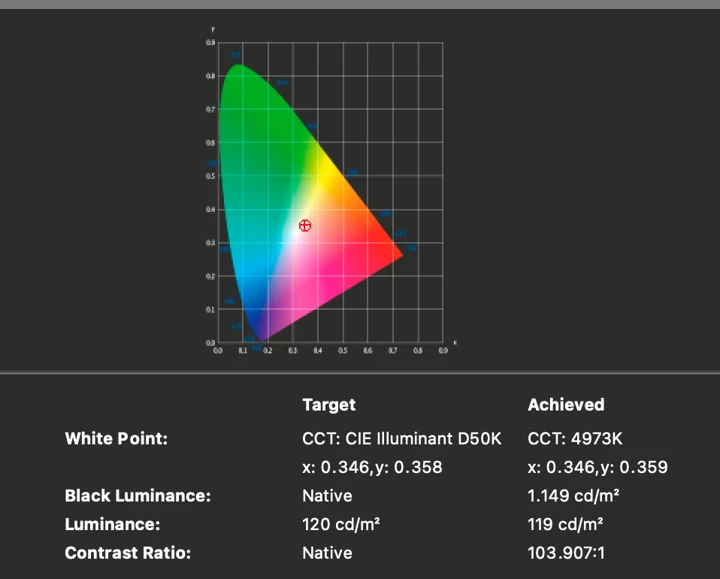
1. What conformance actually means
2. Calibrate, profile, verify
3. Running Display QA in i1Profiler
Patch set
What it tells you
When I'd use it
ColorChecker Classic (24 patches)
General accuracy across a range of everyday colors
Routine checks on any display; a good baseline
Spot or image patch set
How well the display reproduces specific colors you care about
Brand colors, spot colors, or colors from a specific job
Standard patch set + Industry Standard Target
How accurately the display reproduces a printing or proofing specification
Soft proofing, when the screen has to match a print standard
4. Reading the results
5. Make it part of the routine
Getting Started
dang@aldertech.comSources
About the Author

Dan Gillespie